How to Speed Up a Slow Windows PC Without Buying New Hardware
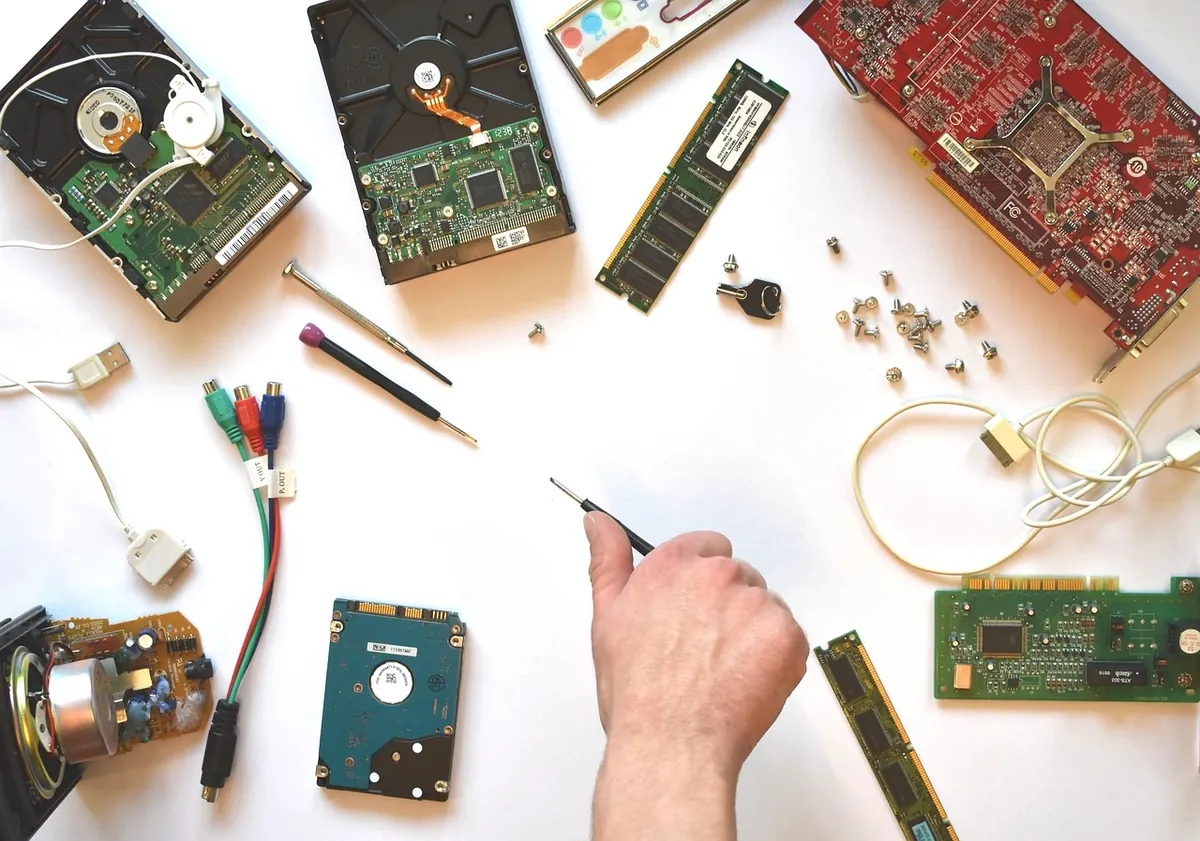
Windows has an unhelpful habit. The laptop that felt snappy two years ago now takes a minute to reach the desktop, and every click on the Start menu arrives with a small, irritating pause. Before you start pricing replacements, it is worth ruling out the usual suspects: programs launching themselves at boot, a system drive that is nearly full, stale drivers and a handful of settings that quietly favour appearance over speed.
None of the fixes below require new hardware. Most take a few minutes, and anything you change can be undone.
Find out what is actually slow
Guesswork wastes time, so start with evidence. Press Ctrl + Shift + Esc to open Task Manager and click More details if you only see a small window. Open the programs you normally use, then watch the Performance tab for a minute or two.
Three readings matter. If Disk sits stubbornly at 100% while you are doing very little, storage is your bottleneck. If Memory is pinned near the top of the graph, you are running more at once than the machine can comfortably hold. If CPU spikes whenever you open a browser, something in the background is competing for attention.
Then open the Startup apps tab and look at the Startup impact column. Write down the two or three entries marked High. That is your to-do list.
Trim your startup apps
Every program that launches with Windows competes for the same disk and processor time during the first minute after you log in. A machine carrying Spotify, Steam, Teams and three manufacturer utilities can spend a surprising chunk of that minute doing nothing you asked for.
- Open Task Manager and go to the Startup apps tab.
- Sort the list by Startup impact, highest first.
- Right-click anything you do not need within a minute of logging in and choose Disable.
- Restart and note how much quicker the desktop settles.
Disabling is not uninstalling. The program stays on your PC and still opens normally when you click it. Safe candidates are chat clients, game launchers, music players, photo tools and update helpers. Leave alone anything related to audio, touchpad gestures, fingerprint readers, security software or cloud backup — those need to be running.
One warning: some manufacturers bury useful utilities here. If you disable something and a function key or a keyboard shortcut stops working, re-enable it.
Free up space on the system drive
Windows needs room to breathe. When the C: drive drops below roughly 10 to 15% free, updates struggle to install, virtual memory has less room to work with, and everything feels heavier. On a 256 GB drive that means keeping at least 15 to 20 GB spare.
- Cleanup recommendations. Go to Settings, then System, then Storage. Windows lists temporary files, previous updates and unused apps it can clear for you.
- Storage Sense. Turn it on in the same section and set it to run weekly, emptying the Recycle Bin and clearing temporary files automatically.
- Installed apps. Settings, Apps, Installed apps — sort by size and remove anything you have not opened in a year.
- The Downloads folder. It is where large installers go to die. Sort by size and delete what you no longer need.
- Big media. Videos, game installs and photo libraries belong on an external drive or a second partition.
- Disk Cleanup. Search for Disk Cleanup, choose the C: drive, then click Clean up system files to reach Windows Update leftovers and old installation files.
If your system drive is a mechanical hard disk rather than an SSD, run the built-in Optimise Drives tool occasionally, or let Windows handle it on its schedule. Do not manually defragment an SSD — Windows manages those differently.
Update drivers, from the right places
Old graphics and chipset drivers cause stutter in games, video playback and even window animations. Windows Update covers most of this, so run it and install what it offers.
For graphics, Wi-Fi, audio and printers, the manufacturer's own website or its official support tool is the better source: Intel, AMD, NVIDIA, or your laptop maker's support page. Avoid third-party "driver updater" programs — they frequently bundle unwanted software and install the wrong package for your exact model.
If a new driver makes things worse
Open Device Manager, find the device, right-click it and choose Properties. On the Driver tab you can select Roll Back Driver to return to the previous version. It is a useful safety net, so do not panic if an update backfires.
Adjust settings for better performance
Power mode
On a plugged-in laptop, check Settings, System, Power & battery and set the power mode to Balanced or Best performance. In Windows 10 you will find the equivalent under Control Panel, Power Options. On battery, keep it lower — the difference in responsiveness is rarely worth the lost runtime.
Visual effects
Search for sysdm.cpl, open it, go to the Advanced tab and click Settings under Performance. Choose Adjust for best performance, then tick Smooth edges of screen fonts so text stays readable. Windows instantly feels crisper on older machines.
Background apps and sync
Settings, Apps, Installed apps, then Advanced options on individual apps lets you stop them running in the background. Meanwhile OneDrive or Dropbox syncing thousands of small files will hammer your disk — pause sync while you work on something demanding.
Browser clutter
Extensions are small programs. A dozen of them, plus forty open tabs, will slow any PC. Remove extensions you cannot name, and use your browser's built-in tab-sleeping or memory-saver feature if it has one.
A few habits that keep it quick
Restart properly rather than shutting down. Fast Startup means a shutdown is not a full restart, so memory and drivers are not fully cleared. Once a week, choose Restart and let it finish. Keep that 10 to 15% of free space. Use the built-in Windows Security scan rather than installing two antivirus tools, which fight each other. And after a large Windows update, give the machine a day to finish background housekeeping before judging its speed.
If it is still slow after all that
Work through the list above first, then measure again. If the disk is still pegged at 100% and the machine is running a mechanical hard drive or only 4 GB of memory, no amount of software tuning will fully fix it — but an SSD or a memory upgrade costs far less than a new computer and transforms the same machine. If the problem is only that a program misbehaves, a reset of Windows while keeping your files is the cleanest last resort. Either way, you will have ruled out everything free before spending anything.
Photo: marijana1 / Pixabay